Tutorial · n8n 2.x · Monitoring
Check your sites every hour, alert only when something is down, and get told when any workflow fails – with the settings that stop a monitor from failing silently.
This guide builds two small n8n workflows that every self-hosted instance should have: an uptime monitor that checks your sites every hour and tells Slack or Discord when one is down, and an error workflow that reports any other workflow that fails. Both were run on n8n 2.46.6; the outputs below are from those runs.
Tested with: n8n 2.46.6 (self-hosted), against a local server that imitates a healthy site, a site returning 503, a site slower than the timeout, and a chat webhook.
The uptime workflow at a glance
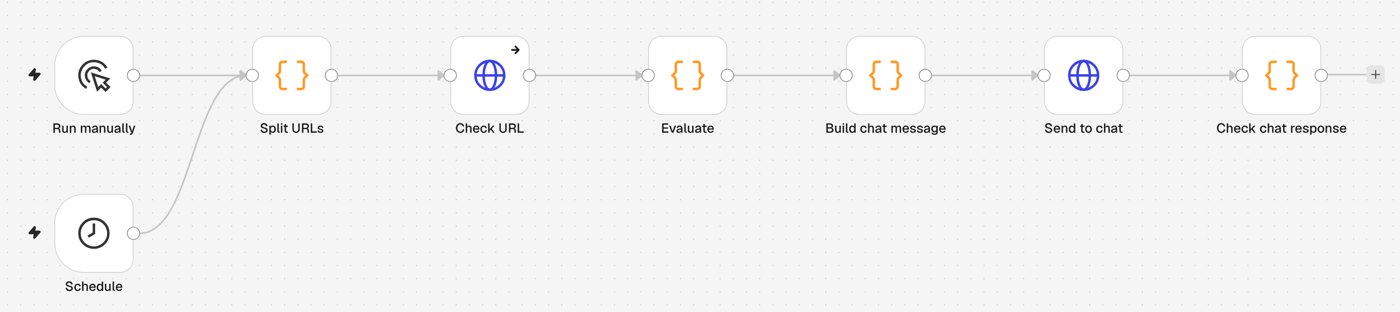
And this is the message it posted in our test, with one healthy URL, one returning 503 and one that took longer than the 1.5-second timeout we set:
🚨 2/3 site(s) down (2026-11-05 07:28)
UP   http://127.0.0.1:8765/site/ok  200
DOWN http://127.0.0.1:8765/site/down  503 HTTP 503
DOWN http://127.0.0.1:8765/site/slow  - timeout of 1500ms exceeded
Step 1 – Put the settings in environment variables
The workflows read their settings with $env, so you configure them once instead of editing nodes. In n8n 2.x this is blocked by default: the 2.0 breaking changes set N8N_BLOCK_ENV_ACCESS_IN_NODE to true. Add these to the environment of your n8n container (for Docker Compose, an env_file) and restart:
N8N_BLOCK_ENV_ACCESS_IN_NODE=false
GENERIC_TIMEZONE=America/New_York
# Slack incoming webhook or Discord webhook URL
CHAT_WEBHOOK_URL=https://hooks.slack.com/services/...
# Comma-separated URLs to check
UPTIME_URLS=https://example.com,https://example.com/pricing
UPTIME_TIMEOUT_MS=10000
Trade-off: with env access unblocked, anyone who can edit workflows on the instance can read every environment variable. Do this only on an instance where you trust all editors – or replace the $env expressions with fixed values.
Step 2 – Check each URL without letting errors stop the run
By default the HTTP Request node throws on a 5xx status, which would end the whole run at the first broken site. Three settings on Check URL change that:
| Setting | Value | Why |
|---|---|---|
| Options → Response → Include Response Headers and Status | On | The status code arrives as statusCode |
| Options → Response → Never Error | On | A 503 becomes data instead of a failure |
| Options → Timeout | {{ Number($env.UPTIME_TIMEOUT_MS || 10000) }} | A hanging site counts as down |
| Settings → On Error | Continue | Timeouts and refused connections still pass an item on, with an error field |
The Evaluate Code node then turns the results into one message:
// 2xx/3xx = up. Timeouts and refused connections arrive as an error field.
const urls = $('Split URLs').all().map(i => i.json.url);
const res = $input.all().map((it, idx) => {
  const j = it.json; const status = j.statusCode || 0; const ok = status >= 200 && status < 400;
  return { url: urls[idx], status, ok, error: ok ? '' : (j.error?.message || j.error || `HTTP ${status}`) };
});
const bad = res.filter(r => !r.ok);
if ($execution.mode === 'trigger' && !bad.length) return [];   // scheduled run and all up: stay quiet
const now = DateTime.now().toFormat('yyyy-LL-dd HH:mm');
const text = (bad.length ? `🚨 ${bad.length}/${res.length} site(s) down (${now})\n` : `✅ All ${res.length} sites up (${now})\n`) +
  res.map(r => `${r.ok ? 'UP  ' : 'DOWN'} ${r.url}  ${r.status || '-'} ${r.ok ? '' : String(r.error).slice(0, 80)}`).join('\n');
return [{ json: { text, down: bad.length } }];
The line with $execution.mode === 'trigger' keeps scheduled runs quiet when everything is up, while a manual run always posts the full status – handy for checking your setup.
Step 3 – Send to Slack or Discord
The two webhook types want different JSON: Slack’s incoming webhooks take a text field, Discord’s take content (up to 2,000 characters). One Code node handles both by looking at the URL:
// Build the chat message. Works with Slack incoming webhooks ({text}) and Discord webhooks ({content}).
let text = String($input.first().json.text || '');
const discord = /discord(app)?\.com\/api\/webhooks/.test(String($env.CHAT_WEBHOOK_URL || '')) || $env.CHAT_PROVIDER === 'discord';
const limit = discord ? 1900 : 3500;
if (text.length > limit) text = text.slice(0, limit) + '\n... (truncated)';
return [{ json: { body: discord ? { content: text } : { text } } }];
Use real emoji characters (🚨, ✅) rather than Slack shortcodes such as :rotating_light:: Slack renders shortcodes, but other webhook targets may print them as literal text, while emoji characters display everywhere.
Step 4 – Fail loudly when the alert itself fails
Here is the trap: if the Slack webhook was deleted, Slack answers with an error (no_service), and a “Never Error” HTTP node would still finish green. You would have a monitor that silently monitors nothing. The last node checks the answer and fails the run on anything but 2xx:
// A webhook answers 2xx when the message was accepted. Anything else fails the execution,
// so the error workflow (E12) can alert you instead of the run looking green.
for (const item of $input.all()) {
  const s = item.json.statusCode;
  if (!(s >= 200 && s < 300)) throw new Error(`Chat webhook returned HTTP ${s}: ${String(item.json.body || '').slice(0, 200)}`);
}
return $input.all();
In our test, pointing the workflow at a webhook that returns 404 made the execution fail with Chat webhook returned HTTP 404 – which is exactly what the error workflow below picks up.
Step 5 – The error workflow

It starts with an Error Trigger node and reuses the same three chat nodes. The Code node in between reads workflow.name, execution.lastNodeExecuted, execution.error.message and execution.url. Then:
- Open each workflow you care about → Settings → Error workflow → choose this one → Save.
- Publish the error workflow. n8n’s documentation says an error workflow doesn’t need to be published. In our test on 2.46.6 it did: with the error workflow unpublished, a failing workflow produced no alert; once it was published, the alert arrived within seconds. Publishing costs nothing, so do it.
The alert our deliberately failing test workflow produced:
🚨 n8n workflow failed
Workflow: TEST - deliberately failing workflow (for E12)
Node: Fail on purpose
Error: Deliberate test failure from the fixture workflow [line 1]
Time: 2026-11-05 07:31:14
Mode: webhook
Execution: http://localhost:5688/workflow/aisntestfail0001/executions/33
Error workflows only fire for automatic runs (schedules, webhooks); a failed manual run in the editor shows its error on the canvas instead.
Limits worth knowing
- It checks from your server’s network. If n8n and the site share a server, an outage can take down both, and nobody gets alerted. Pair it with an external monitor for anything important.
- Up means 2xx or 3xx. A page that returns 200 with an error message inside still counts as up. Add a keyword check in Evaluate if that matters to you.
- No repeat suppression. A site that stays down posts every hour. That is usually what you want for an outage; adjust the schedule if not.
Download both workflows free
The free n8n Alerts Starter contains these two workflows as importable JSON, the settings file and a one-page setup PDF. The full pack has 16 more, all tested the same way – RSS to Airtable, AI daily and weekly reports, GitHub commit summaries, lead capture with AI scoring, CSV import in batches, GitHub backups of your workflows and page-change alerts – plus the mock server and test runner.
FAQ
Does this work on n8n Cloud?
The nodes do, but n8n Cloud doesn’t let you set environment variables. Replace the $env.* expressions with fixed values (or n8n Variables on plans that have them).
Can I monitor more than a few URLs?
Yes – add them to UPTIME_URLS. They are checked one by one; with a 10-second timeout, a long list of slow sites takes a while, so keep the hourly schedule or shorten the timeout.
Why not use the Slack node?
You can. A webhook needs no OAuth app or credential and the same workflow then works for Discord, which is why we used plain HTTP.
Sources
- n8n 2.0 breaking changes
- n8n Error Trigger node
- Slack: Sending messages using incoming webhooks
- Discord: Webhook resource (Execute Webhook)
AI Stack Nav is independent. Product names are trademarks of their owners.